Remote desktop software is one of those tools that feels like magic the first time it solves a problem. Your laptop has stopped behaving, a trusted friend lives two hours away, and suddenly they can show you exactly which setting needs changing. Brilliant — as long as the person on the other end is genuinely someone you trust.
The uncomfortable flip side is that the same technology can give a stranger a view of your files or even control of your computer. The software itself isn't necessarily malicious. It is the person requesting access and the permissions you grant that make the difference.
This UK-focused guide explains the practical safety checks for tools such as HopToDesk, Microsoft Quick Assist and other remote-control applications.
The most important rule: never accept unsolicited remote help
If someone rings you unexpectedly claiming to be Microsoft, your bank, an internet provider or 'computer security', and asks you to install a remote-access app, end the call. Don't read out a device code or click a link just because the caller sounds confident.
The UK's National Cyber Security Centre says its own staff will not contact people unsolicited asking for remote computer access or passwords. Microsoft's Quick Assist guidance likewise warns against tech support scams and recommends only allowing connections you initiated with people you trust.
If you need support, find the organisation's contact details independently, from a known website or your existing account. Do not use the telephone number supplied in a scare-message pop-up.
Only download from an official source
Remote tools often come as small files, which is useful for legitimate support but also makes a malicious lookalike easy to distribute. Use the software manufacturer's official site or a trusted app store. Avoid an executable from a messaging-app link or a pop-up that claims your computer is infected.
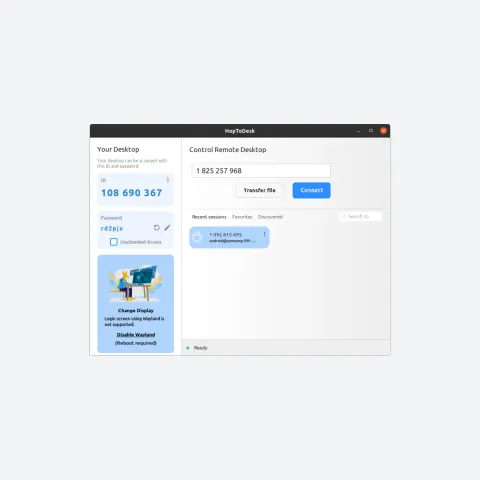
For example, the official HopToDesk downloads page lists the supported platforms and version options. Its Windows app can be run in a portable mode, without a full installation. That convenience doesn't make it sensible to run a copy sent by an unknown person.
For larger teams, IT staff should verify software signatures, release provenance and permissions before deploying a remote tool to lots of machines.
Know the difference between viewing and controlling
'Share screen' and 'give control' are not interchangeable. An ordinary screen-sharing session lets somebody see what you see; a full remote-control session may let them open programs, change settings, copy files or type into forms.
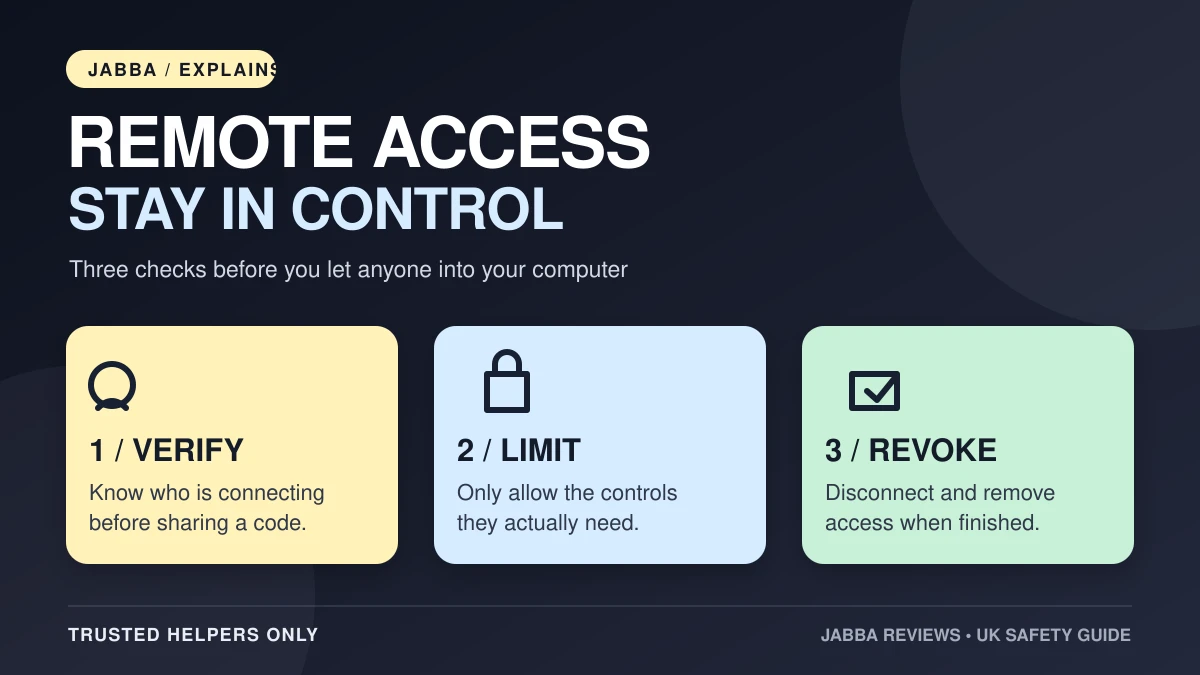
Before approving access, ask three questions:
- Who is connecting? Verify the person by a separate trusted route.
- What can they do? Check whether the session allows view-only access, mouse and keyboard control, file transfer or clipboard synchronisation.
- How does it end? Learn how to disconnect, revoke access and stop the service before you begin.
Avoid opening banking apps, password managers or private documents while sharing the screen. If you feel uncomfortable, end the session immediately.
Protect the device with passwords and two-factor authentication
A strong, unique password is essential for remote access. Prefer temporary or one-time passwords when helping somebody with a single problem. Permanent, unattended access is convenient for devices you manage, but it needs stricter controls.
Where available, enable device-level 2FA so a second code is needed to start a remote session. It is important to distinguish this from 2FA on a management account: protecting the Dashboard login alone does not necessarily protect every way to reach a device.
HopToDesk's current security help documents one-time and permanent device passwords, device-specific TOTP 2FA and separate Dashboard passkeys. Features vary between products and versions, so check the tool you actually use rather than assuming all remote software works identically.
For work devices, look for access logs, clear team permissions and options to remove former staff members' access promptly.
What if you need unattended remote access?
Unattended access lets an authorised person reconnect without somebody physically approving each session. It is useful for machines you own or administer, but it should not become a permanent open invitation.
Turn it on only where necessary, keep the client updated and restrict who can connect. Use different credentials for different systems, review the device list regularly and disable unattended access when the original reason has passed.
If your family member only needs a single ten-minute fix, I would keep things simple: use a short-lived connection with them present and disconnect when it is finished.
What about file transfer, session recordings and AI tools?
Remote file transfer, clipboard access and recording can be genuinely useful, but they also widen what a remote helper can see or take away. Ask for an explanation of any file transfer and check whether a session is being recorded. On a work device, follow your organisation's privacy and retention rules.
Some products now support AI-assisted remote management. HopToDesk, for example, documents MCP access that can permit authorised assistants to interact with connected devices. That means credentials and permissions deserve the same care as an administrator account, not the casual trust you'd place in a normal chat.
The safest approach is to give the minimum access required for the task and revoke it afterwards.
If you've already let a suspicious caller connect
Act quickly, but methodically:
- Disconnect the session and, if you can do so safely, disconnect the affected device from the network.
- Contact your bank immediately if payments or financial details may have been exposed, using a number you already trust.
- From a clean device, change passwords for accounts the caller could have seen, especially email and banking, and enable 2FA or passkeys.
- Run updated security software and have the computer checked by a trusted professional if remote software or unknown programs remain.
- Report the incident through the appropriate UK channels. England, Wales and Northern Ireland use Report Fraud; Scotland uses Police Scotland. Call emergency services if someone is in immediate danger.
Citizens Advice has practical recovery advice for people who have given a scammer access to their computer. The NCSC's recovery hub can help you decide what to do next.
Which remote desktop tool should you choose?
Look for something that works on your actual devices, has clear access permissions, supports suitable passwords and 2FA, receives regular security updates and makes it easy to end a session.
Price and ease of setup matter, but security and reliability should come first. A free tool can be appropriate for occasional support; a business with dozens of endpoints may need better logging, managed accounts and restrictions.
Our HopToDesk remote desktop review examines the free client, its optional management Dashboard and the connection quirks reported by users. Those are buying considerations, not evidence that the software is itself a scam.
The rule to remember: you decide who can reach your computer. A genuine support professional can explain why they need access, exactly what they will do and when they'll disconnect.
How we researched this guide
This is a practical explainer based on guidance from the NCSC, Microsoft and Citizens Advice, plus current official HopToDesk documentation. We haven't conducted a penetration test of the named products, and no individual support incident is being presented as our own experience. The featured illustration is an original Jabba Reviews checklist, not a screenshot of the software or a substitute for technical testing.
KEEP EXPLORING
This article was originally published on 21 Nov 2026. Product specifications, prices and availability may have changed. We sometimes receive review products and may earn commission through affiliate links. We are not obliged to publish a positive review. How we review and disclose partnerships.