You've got the snacks, the sofa and a whole evening of absolutely nothing planned. Then your Fire Stick remote decides it has other ideas. Brilliant.
If your Fire Stick remote isn't working, don't order a replacement just yet. A fresh pair of batteries, a restart and a quick re-pair will often get you back to your film without spending a penny on new hardware. If only the volume buttons are playing up, there's a different fix for that too.
Fire Stick remote not working? Start here
Before you start pressing every button in sight, work out what's actually gone wrong.
| What's happening? | Try this first |
|---|---|
| None of the buttons respond | Fresh batteries, then restart and pair the remote |
| The Fire TV says it can't detect your remote | Hold Home for around 10 seconds |
| The menus work but volume or power doesn't | Check Equipment Control or your TV's remote setup |
| A remote light flashes orange | Restart the Fire TV and pair again on supported remotes |
| The television has no picture at all | Check the Fire TV has power and the right HDMI input |
| You need to navigate the menus without a remote | Try the Amazon Fire TV phone app |
These checks apply to the Fire TV Stick family, but the remote design and menu names can vary by generation, including the newer 2026 models. Amazon's Fire TV remote help page is worth keeping handy.
1. Change both batteries
Yes, batteries. The least exciting answer in tech is sometimes the right one.
Take both batteries out, check that the contacts are clean and dry, then fit a fresh matching pair with the positive and negative ends the right way round. Most Alexa Voice Remotes take two AAA cells; check the markings on your own remote before buying replacements. Amazon recommends fresh alkaline batteries for its standard troubleshooting checks.
Stand within about three metres of your Fire TV, ideally without anything obstructing it, and try the navigation ring and Home button.
Still nothing? Don't assume the remote is dead yet.
2. Restart the Fire TV Stick
Sometimes the device on the other end is the problem, not the thing in your hand.
Disconnect the Fire TV Stick from its power source for about a minute. Reconnect it, let it finish starting up and make sure your TV is on the correct HDMI input. If you're getting a blank screen or repeated restarts, check the power cable and use the power arrangement specified for your exact model.
Once the Fire TV interface appears, try the remote again. If the television itself has no picture, solve that problem first; pairing a remote won't bring an unpowered streaming stick back to life.
3. How to pair a Fire Stick remote that won't connect
A remote that has lost its connection can look completely broken even when the buttons and batteries are fine.
With the Fire TV switched on and the remote nearby, hold the Home button for around 10 seconds. Wait for the pairing confirmation or follow the instructions on the television. On models with a compatible indicator, a blue flash can confirm pairing after a reset.
If pairing doesn't work, try removing the batteries for 30 seconds, putting them back and repeating the Home-button hold. Amazon's pairing instructions cover initial setup and pairing failures.
Got a second working Fire TV remote? You can usually add another through Settings, then Controllers & Bluetooth Devices, Amazon Fire TV Remotes and Add New Remote. Menu wording may differ on your model.
4. How to reset your Fire Stick remote (not the whole Stick)
This is the important distinction. Resetting the remote is not the same as wiping your Fire TV and signing back into every streaming service. I'd much rather try the former before doing anything drastic.
For most Fire TV remotes, Amazon's reset sequence is:
- Disconnect your Fire TV from power and HDMI, then leave it disconnected for a minute.
- Hold the left side of the navigation ring, Menu and Back together for 12 seconds.
- Let go, wait five seconds and take the remote's batteries out.
- Reconnect the Fire TV and wait for the message that it cannot detect a remote.
- Refit the batteries, press Home and, if necessary, keep Home held for about 10 seconds to pair.
Older remotes don't all use the same combination. The first-generation Alexa Voice Remote uses Left and Menu instead of all three buttons, while the original Basic Edition Remote has a different sequence altogether. Check Amazon's model-specific reset instructions before using a button combination on an unfamiliar remote.
A quick visual reference: this genuine photograph of an older Fire TV Stick remote shows the familiar circular navigation and playback controls. Newer models look different; check your own buttons rather than copying a picture of the wrong generation. Photo by www.hdmi-experte.com, CC BY 4.0.
5. Use your phone as a Fire TV remote
This is my favourite workaround because you don't need to buy anything, and it lets you find out whether the Fire TV is still responding independently of its physical remote.
Download the official Amazon Fire TV app from your phone's app store. Connect your phone to the same Wi-Fi network as your Fire TV, open the app and select your device. Follow any on-screen code or connection prompt.
You should then be able to use your phone to navigate the Fire TV menus. Amazon also explains how to use the app to pair another remote, including the Controllers & Bluetooth Devices menu on compatible devices.
There is one catch: if the Stick is on a different network, disconnected from Wi-Fi or stuck before initial setup, the app may not be able to find it. That isn't automatically proof that the device is broken.
6. Fire Stick remote volume not working? Check Equipment Control
If you can scroll around Netflix or Prime Video but can't turn the TV down, your remote's connection to the Fire TV probably isn't the main issue.
On compatible Fire TV Stick and Alexa Voice Remote models, the television or soundbar controls may use infrared or equipment-control settings, separate from the Stick's own navigation controls. Point the remote directly at the television, remove obstructions and check whether the TV's own remote can change the volume.
On supported streaming sticks, go to Settings > Equipment Control > Manage Equipment > TV. Check whether the listed brand matches your television; if it doesn't, choose Change TV and follow the prompts. See Amazon's volume, power and mute troubleshooting. For a soundbar, check its equipment setup too. The options and capabilities depend on your devices. A remote without TV volume buttons won't gain them through a reset.
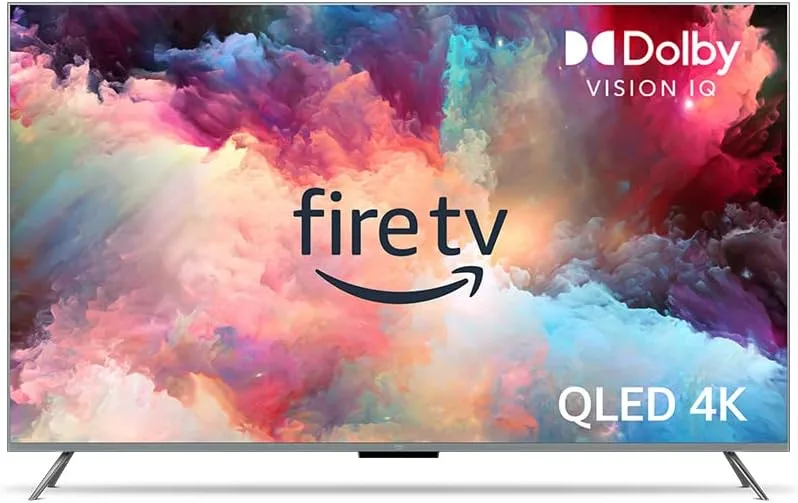
If you've got a Fire TV built into the television rather than a separate streaming stick, use that television's model-specific instructions. Our Amazon Fire TV Omni QLED review covers one example of an integrated Fire TV set.
What does a flashing light on a Fire Stick remote mean?
Not every Fire TV remote has an LED or supports Amazon's diagnostic mode. On compatible remotes, Amazon's remote troubleshooting guide explains how to activate the mode and interpret its colours.
| Light in diagnostic mode | What to check |
|---|---|
| Slow red flash | Battery level |
| Fast red flash | Reset the remote |
| Orange | The remote needs pairing |
| White | Check whether the Fire TV is powered on |
| Blue | Restart the Fire TV; the diagnostic mode hasn't found a remote fault |
To enter diagnostic mode on a supported remote, hold Rewind and Right for three seconds, then press Menu. A green light signals that the mode is active. Press a button to see the diagnostic colour. To leave the mode, hold Play/Pause and Up for three seconds, press Menu, then remove and reinsert the batteries. Don't interpret every flash outside that mode as a fault code. Check the official guide for your model.
When is it worth buying a replacement?
If fresh batteries, a restart, pairing and the correct remote reset all fail, but the Fire TV works normally from your phone, a replacement remote becomes a much more sensible purchase.
Before ordering one, identify your Fire TV model and check Amazon's remote compatibility list. In particular, don't assume that every newer 2026 Fire TV Remote works with every older Stick, television or Cube. A cheap universal remote might handle basic playback without supporting all the voice or TV-control features you want.
If the phone app won't connect either, look at the Fire TV's power, network and device state before spending money. A replacement remote can't fix a faulty streaming stick.
Fire Stick remote troubleshooting FAQs
How do I reset a Fire Stick remote without the original remote?
You can reset the remote itself using the correct button combination for its model. To control the Fire TV's settings without a working physical remote, try the official Fire TV phone app on the same Wi-Fi network.
Why is my Fire Stick remote not working after changing the batteries?
Check the battery orientation and that both batteries are fresh, then restart the Fire TV and hold Home for around 10 seconds to pair again. If that fails, try the model-specific reset instructions.
Why is my Firestick remote flashing orange and not working?
On remotes that support Amazon's troubleshooting mode, orange means the remote isn't paired. Restart your Fire TV, wait for its remote-detection message and hold Home for about 10 seconds. If it still won't pair, follow the model-specific reset above.
Can I buy a replacement Fire Stick remote without buying another Stick?
Yes, provided the replacement is compatible with your exact Fire TV model. Check the official compatibility list before ordering, and try the free phone app first if you need access to the menus.
Will a factory reset fix my remote?
It isn't a good first step. A Fire TV factory reset removes account information and downloaded content, while a remote reset addresses the remote connection itself. Try the less disruptive fixes first.
My advice: don't replace a remote just because it stops responding once. Start with the easy stuff, give it a proper re-pair and keep your phone handy. There are far more exciting things to spend your money on than another identical black remote.
KEEP EXPLORING
This article was originally published on 25 Nov 2026. Product specifications, prices and availability may have changed. We sometimes receive review products and may earn commission through affiliate links. We are not obliged to publish a positive review. How we review and disclose partnerships.