Your router has two free Ethernet sockets, and suddenly you've got a games console, gaming PC, smart TV and something else that insists on needing a cable. If you're searching for an Ethernet splitter, it's tempting to buy the first little adapter with two sockets and call it a day.
Please don't. At least, not until you've checked what it actually does.
For nearly every ordinary home setup, what you really want is an Ethernet switch. But shops sometimes call switches “hubs” or “splitters”, which is a great way to make a simple networking upgrade sound like a GCSE practical exam.
Here's the easy version of Ethernet switch vs splitter vs hub, including what to buy for a gaming setup, how to connect it and when to spend extra on a faster 2.5Gbps model.
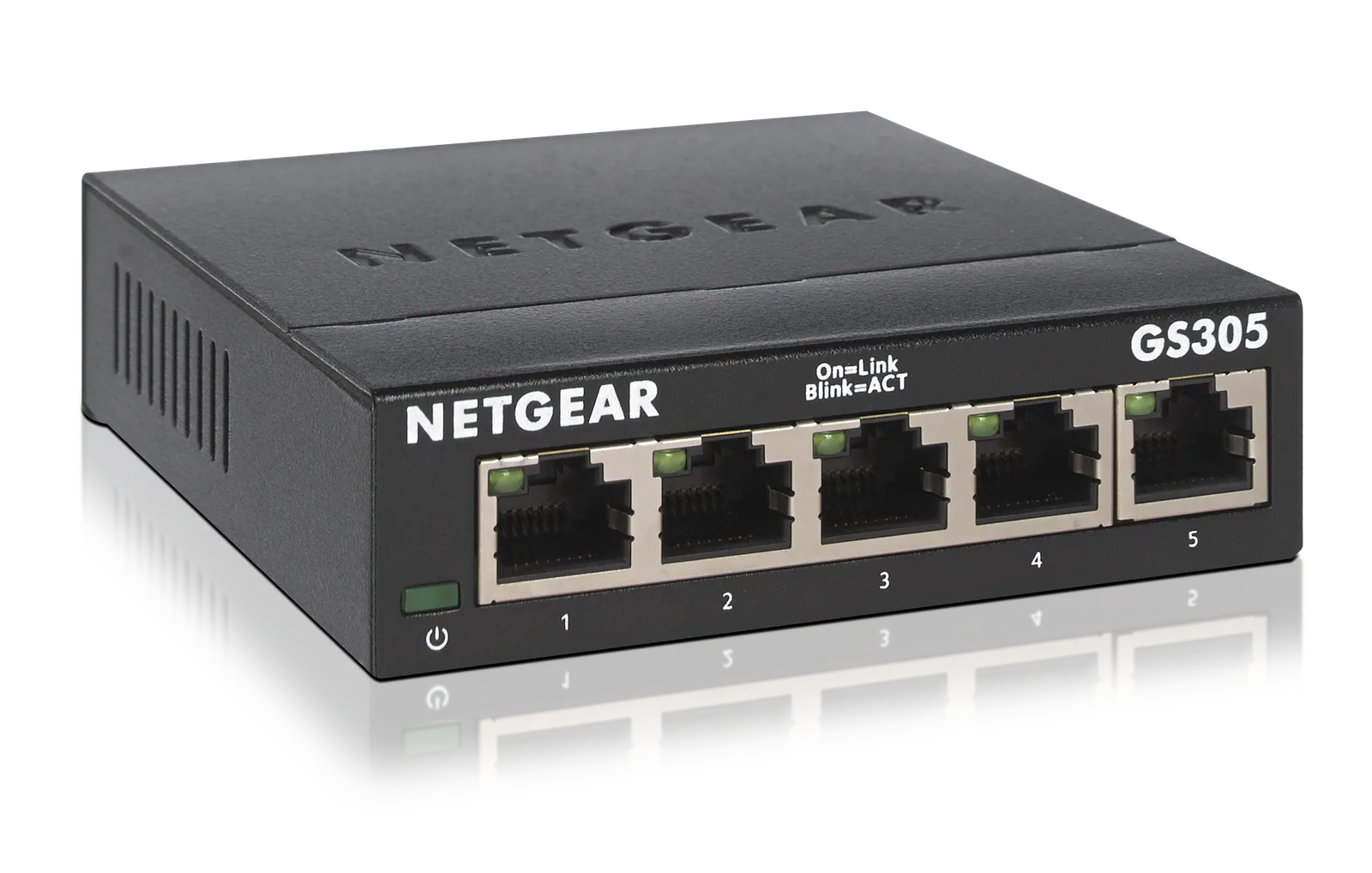
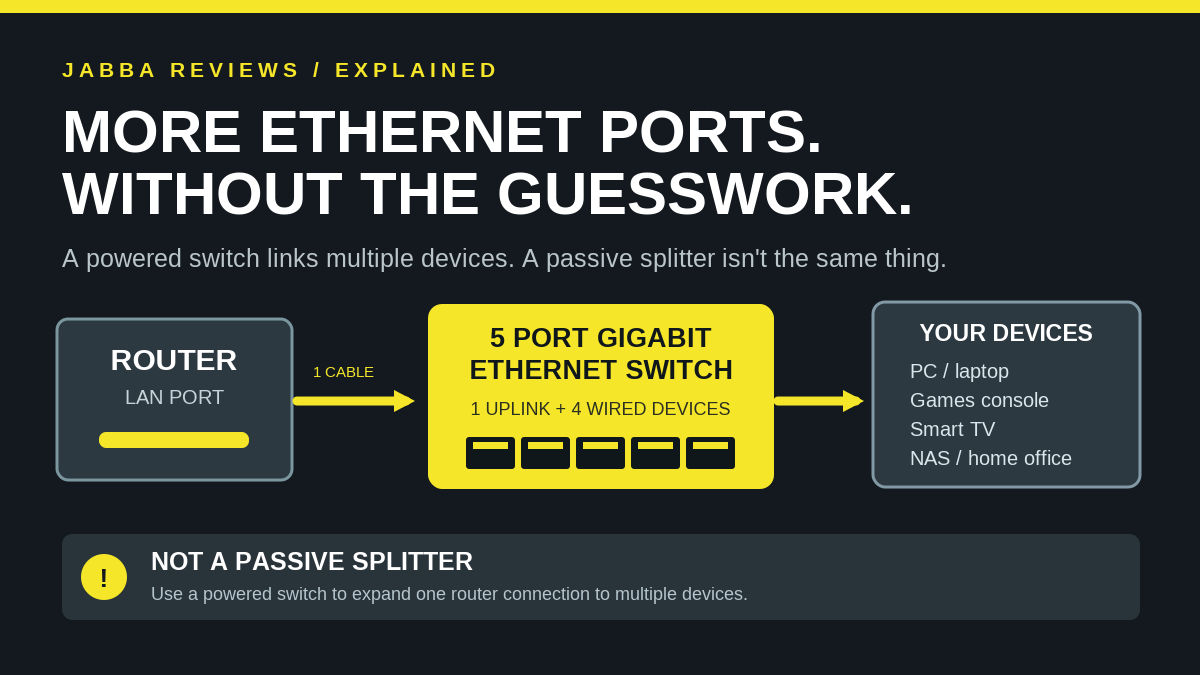
The featured photo shows the NETGEAR GS305 from our original five-port switch review, a practical example of the powered switch discussed below. This original Jabba Reviews diagram explains how the connections should work:
Ethernet switch vs splitter vs hub: the quick answer
| Device | What it actually does | Should you buy it for more home network ports? |
|---|---|---|
| Ethernet switch | Uses electronics to direct network traffic between several connected devices. | Yes. A basic unmanaged 5-port or 8-port switch is the usual answer. |
| Ethernet hub | Repeats traffic across connected ports instead of sending it only where it needs to go. | Usually no. Genuine old-style hubs are legacy networking equipment. |
| Passive Ethernet splitter | Rearranges or divides cable wiring in specific installations; it doesn't intelligently switch data. | Not as a simple one-socket-to-two-devices replacement. |
| Powered device sold as an “Ethernet splitter” | Might actually be an Ethernet switch in disguise. | Check the specifications. Look for an active switch with supported port speeds. |
Cisco's explanation of Ethernet switches describes how they connect wired devices and forward traffic using their network addresses. That's very different from an old-style hub, which repeats traffic to every port.
What is an Ethernet switch and why would you need one?
Think of an Ethernet switch as a little extension for your router's wired network. Plug one cable from a router LAN port into the switch, then plug your other wired devices into the remaining ports. The switch learns which connected device belongs to which port and directs traffic accordingly.
So if you've only got one wall Ethernet socket near your television, an unmanaged switch can let you connect your TV, console and streaming box without endlessly swapping cables.
A standard 5-port Ethernet switch gives you five physical Ethernet ports, but one of them normally carries the connection back to the router. That leaves four for devices. If you need more, go for an 8-port switch. Buy slightly more capacity than today's setup needs and Future You will thank you.
The typical home switch is unmanaged, meaning there's no configuration screen, username or networking hobby you suddenly have to acquire. You plug it into power, connect the cables and it starts working.
If you're looking at a real example, we've already reviewed the NETGEAR GS305 unmanaged five-port Gigabit Ethernet switch. It gives you a better idea of what this sort of hardware looks like outside a confusing product listing.
Why a passive Ethernet splitter isn't the same thing
The word “splitter” causes the most trouble because different sellers use it for different gadgets.
A passive cable splitter doesn't behave like a network switch. Some older splitter setups use paired adapters at both ends of a cable to carry two separate lower-speed connections over different wire pairs. They aren't designed to let two devices independently share one Gigabit Ethernet network connection through a single ordinary router port.
With modern Gigabit Ethernet, all four twisted wire pairs are normally needed for the connection. A cheap passive Y-adapter therefore isn't a reliable way to plug a PS5 and TV into the same LAN socket and have both work as though the router had two new ports.
And watch out for another naming clash: a PoE splitter can separate power from a Power over Ethernet connection. That's a different use of the word splitter again, not a replacement for an ordinary multi-port network switch.
The buying shortcut is simple: if you want to turn one wired network connection into several usable ports for devices, look for a powered Ethernet switch with clear specifications.
Will an Ethernet switch make your gaming internet faster?
Maybe your connection will feel more reliable if you're replacing poor Wi-Fi with Ethernet. But the switch itself won't increase the speed of your broadband package or magically lower every game's ping.
What it offers is a wired connection that doesn't share the same radio link as your Wi-Fi devices. That's handy if your PC or console sits near your router, or if you can run an Ethernet cable to your desk.
A normal Gigabit switch provides up to 1Gbps link speed per Gigabit port. That's the rated link speed, not a guaranteed internet download speed, and a group of devices sharing the same connection back to your router can compete for that uplink.
If you've bought a fast internet plan, a NAS or an editing workstation and need transfers above 1Gbps within your home, 2.5GbE may be worth considering. But paying extra for multi-gigabit networking makes little sense if your router, cable runs and connected devices are all limited to Gigabit Ethernet.
A good question to ask before buying: which part of my network can actually use the extra speed?
5-port vs 8-port: what should you buy?
For a living-room TV, console and streaming box, a 5-port switch is often enough. One port is for the router, leaving four for your devices.
For a desk with multiple PCs, a NAS, a printer and a couple of future additions, an 8-port switch gives you much more breathing room without changing the basic setup. You don't have to fill every port on day one.
Other specifications worth checking:
- Unmanaged vs managed: Unmanaged for plug-and-play; managed if you genuinely need settings such as VLANs and more advanced network controls.
- Gigabit vs 2.5 Gigabit: Match your router, devices and actual file-transfer needs.
- Power over Ethernet (PoE): Useful if you want to power supported access points or cameras through Ethernet, but ordinary cheap switches usually don't provide it.
- Fanless design: A quiet, fanless model is ideal if the switch will sit near your TV or desk.
- Power supply: A basic Ethernet switch usually needs its own power source, so leave room for a plug.
- Build and placement: Think about wall mounting, desk space, cables and the tiny lights you may not want flashing next to your bed.
For the technical definitions and a current overview, Cisco explains switches and hubs, while NETGEAR's GS105 UK product page shows what an ordinary five-port unmanaged Gigabit switch includes.
How to connect an Ethernet switch to your router
The setup is genuinely easier than the terminology:
- Put the switch near your devices and connect its power supply.
- Run one Ethernet cable from a LAN port on the router to any supported port on a basic unmanaged switch.
- Connect your PC, console, smart TV or other wired equipment to the remaining ports.
- Check the link lights on the switch and network status on each device.
- Try a real connection, such as opening a website or running a file transfer between two machines.
On most modern unmanaged switches, you don't need to find a special “uplink” socket; the ports automatically handle ordinary connections. If the switch doesn't work, check the power, swap the Ethernet cable, try a different port and make sure you're using a router LAN port rather than accidentally plugging into an unrelated device.
If there's still no connection, check whether the router's network settings or a managed switch configuration are involved. A small switch doesn't replace your router's job of handing out IP addresses and routing traffic to the internet.
Do you need Cat6 cables with an Ethernet switch?
Not automatically. For most normal home Gigabit runs, a decent Cat5e Ethernet cable is sufficient under the relevant cabling standards, assuming it's installed properly and within supported distances.
Cat6 can be useful when you're rewiring a home or planning for higher network speeds, but simply swapping all your existing cables to ones with bigger numbers printed on the jacket isn't a guaranteed speed upgrade.
Buy cables of the right length from reputable suppliers, avoid crushing them beneath furniture and check that they're actually connected to Gigabit-capable ports.
Ethernet switch FAQs
Can I plug an Ethernet switch into another switch?
Yes. You can connect switches to extend a wired network, though devices may share bandwidth across the connection between them. For ordinary homes, that is usually fine.
Does a five-port Ethernet switch give me five extra router ports?
Not quite. One port typically connects back to the router, leaving four available for your devices.
Is an Ethernet hub the same as a switch?
No. A true hub repeats traffic between ports; a switch directs it more intelligently. Some sellers casually use “hub” for a switch, so check the actual specification.
Do I need an Ethernet switch for a PS5 or Xbox?
Only if you need more wired connections than your router or wall socket offers. A console can connect directly to the router too.
Does a switch slow down broadband?
A correctly specified switch should not reduce a connection below its port and uplink limits, but a 100Mbps switch in a faster network would create a bottleneck. Shared uplinks and busy devices can affect throughput.
Is a powered Ethernet splitter really a switch?
Sometimes. Marketing terminology is inconsistent. Check for a genuine Ethernet switch design, the number of active ports and the stated per-port speeds.
The verdict
If your goal is just more wired ports for a UK home network, don't overthink it: a five-port or eight-port unmanaged Gigabit Ethernet switch is the sensible starting point. It's usually much simpler than messing with passive splitters or trying to turn an old router into an improvised network project.
For gaming, video calls, streaming and day-to-day desk tech, buy the right number of ports, check the speed, plug it in and enjoy the rare tech upgrade that doesn't require an entire weekend.
And if you're shopping for a real-world example, our NETGEAR GS305 review is an easy next stop.
This is a buying explainer based on networking standards and manufacturer documentation. It isn't a claim that we measured speeds, latency or hardware performance for this article.
KEEP EXPLORING
This article was originally published on 24 Nov 2026. Product specifications, prices and availability may have changed. We sometimes receive review products and may earn commission through affiliate links. We are not obliged to publish a positive review. How we review and disclose partnerships.