You plug your phone in, wander off to make a cup of tea, come back and discover it's gained approximately three per cent. Wonderful. Why is your phone charging so slowly, and is the answer really another new charger?
Not necessarily. A tired cable, a low-power socket, a warm phone or a charging setting can all make a difference. The trick is to check the simple stuff before spending money.
Start here: Try a known-good cable and a compatible wall charger, leave the phone's screen off for a while, and see whether the charging speed improves. If you notice a liquid warning, damaged connector or unusual heat, stop and follow the manufacturer's safety advice instead.
1. Try a wall socket instead of a laptop or USB hub
A USB port on a computer, monitor or car dashboard might keep your phone alive without delivering the power it needs for faster charging. Apple specifically notes that computer and hub ports can charge more slowly than a suitable dedicated charger.
Connect the phone directly to a working wall socket using a compatible adapter. If that changes things, the phone itself might be perfectly fine.
2. Check the charger's actual output
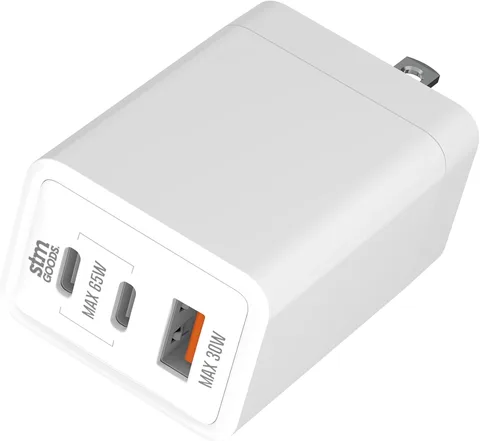
The large number printed on a charger is its maximum capability, not a promise that every phone will charge at that speed. The phone, cable and charger have to work together.
Many modern phones use USB-C Power Delivery (PD), while certain Android models also benefit from a compatible Programmable Power Supply (PPS) adapter. Google lists PD and PPS options in its official Pixel charging advice. The exact requirements depend on your phone.
If your adapter is an old 5W plug, a suitable modern charger could help. If you're already using a compatible charger, jumping from 30W to 100W won't necessarily speed anything up.
We covered one real-world combination in our earlier Anker Nano II 65W USB-C charger review, including how the reviewer's Samsung phone identified the charging mode. That's an original experience with an older handset, not a test of today's models.
3. Swap the USB-C or Lightning cable
A cable can still connect and charge while being unreliable. A loose connector, damaged insulation or incompatible cable may be the culprit.
Try another known-good, undamaged cable rated for the charging setup you're using. Avoid any cable with frayed insulation, bent or damaged connectors, or signs of overheating. Apple's charging troubleshooting guide recommends checking both the cable and adapter before assuming there's a phone problem.
Our Anker PowerLine III Flow USB-C cable review looks at a higher-rated cable. Just remember that a cable labelled 100W doesn't make a phone capable of charging at 100W.
4. Give a warm phone time to cool down
Charging generates heat. Gaming, video calls, heavy camera use or leaving a phone in sunlight can add to it. To protect the battery, some phones slow or pause charging when their temperature gets too high.
Apple confirms this behaviour in its iPhone charging guidance, and Google gives similar advice for Pixel phones.
If your phone feels unusually warm, unplug it, stop demanding tasks and let it cool naturally in a well-ventilated place. Moving it out of direct sun or temporarily taking off a heat-trapping case may help. Don't put it in a fridge or freezer or try to force-cool a wet charging port.
5. Stop using demanding apps while it charges
If you're streaming video at full brightness, gaming or running navigation, some of the incoming energy is being used straight away. Battery percentage may rise more slowly even though the charger is supplying power.
Try charging with the screen off and unnecessary demanding apps closed. For a more useful comparison, use the same charger and cable before and after changing this one thing.
6. Check whether it's only slow above 80%
A phone can charge quickly from a low battery level and then ease off as it gets closer to full. That's often normal battery management rather than a broken charger.
Some devices also deliberately hold or slow the last portion of a charge. For example, Apple's Optimised Battery Charging and Google's Adaptive Charging are designed to reduce time spent sitting at full charge. Pixel models may also have an 80% charging limit enabled. Check the settings before assuming your phone is stuck.
You can read the details in Apple's support article and Google's charging optimisation guidance. Menu names can vary with the model and software version.
7. Look at the fast-charging settings on your phone
On a supported Samsung Galaxy phone, open Settings → Battery → Charging settings and see whether Fast charging is enabled. Samsung says the options can differ by model, and some newer Galaxy models combine standard fast and super-fast charging under one switch.
For Pixel devices, look for charging diagnostics if your model supports them. Google says these can flag things such as temperature, debris or an incompatible charger.
Neither setting can make an unsupported plug or cable magically charge faster. Check the Samsung UK instructions and Pixel troubleshooting advice for your particular device.
8. Take moisture and charging-port warnings seriously
Pocket lint and debris can interfere with a proper cable connection. Check whether the plug fits firmly and inspect the port without pushing anything inside.
If a phone reports liquid or moisture, disconnect the cable and don't charge through a wet port. Apple advises against putting cotton buds, paper towels or other objects into the connector, using compressed air or trying the rice trick. Samsung similarly warns against inserting objects into a wet port.
Follow your manufacturer's drying instructions and seek authorised support if the warning persists. See Apple's liquid-detection guidance and Samsung UK's moisture advice.
9. If you're charging wirelessly, check alignment and accessories
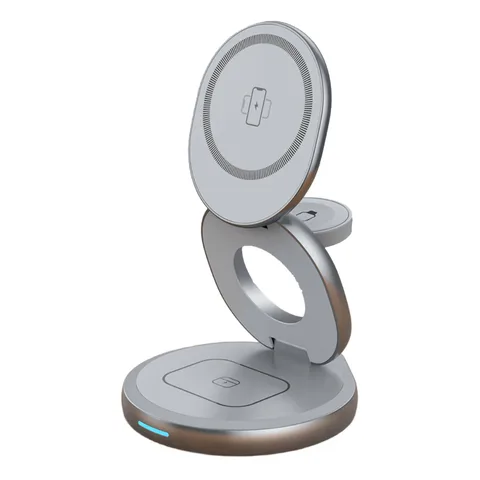
Wireless charging is convenient, but a phone sitting off-centre on a pad or a case with an interfering metal attachment can affect the connection. A low-power wireless pad may also be slower than a compatible wired charger.
Try repositioning the phone, checking that the pad has its own suitable adapter and removing interfering magnetic or metal accessories. Google's wireless-charging troubleshooting guide explains what to check.
For an example of the convenience and compromises of a magnetic stand, see our Anker 623 MagGo review. It describes the original desk setup rather than claiming the stand fixes charging faults.
A quick way to narrow down the cause
| What you notice | Worth checking first |
|---|---|
| Slow only from a laptop or car USB port | Try a compatible wall adapter |
| Slow with one cable but fine with another | Replace the suspect cable |
| Charging pauses when the phone gets warm | Let it cool naturally and check for temperature alerts |
| Slows near 80% or stops at 80% | Check charge optimisation and any charge limit |
| Wireless charging keeps cutting out | Check alignment, case accessories and pad power |
| Moisture warning, damaged port or unusual heat | Stop wired charging and follow official safety advice |
When should you get the phone checked?
If the problem continues with a known-good charger and cable, in a cool, dry environment, and you've ruled out settings or an unusually busy phone, contact the manufacturer's support team or an authorised repair service.
Stop using a charger or phone that has obvious damage, a swollen battery, smoke, a burning smell or unusual overheating. Don't open the battery or poke tools into the charging port yourself.
The bottom line: A slowly charging phone doesn't automatically need a bigger charger. Start with the cable, power source and temperature, then check the model-specific settings. It's usually a much cheaper investigation than buying a drawer full of new plugs.
If you're weighing up charging gear for trips and laptops, our power bank comparison guide explains different capacities and outputs using products previously reviewed by Jabba Reviews.
About this guide: This is manufacturer-supported troubleshooting advice, not a controlled charging-speed test. Features and menu names depend on the exact phone and software version. Product reviews linked above retain their original publication dates and verdicts.
KEEP EXPLORING
This article was originally published on 14 Nov 2026. Product specifications, prices and availability may have changed. We sometimes receive review products and may earn commission through affiliate links. We are not obliged to publish a positive review. How we review and disclose partnerships.